
myRoupeiro 〜 soccer match data logger and analyzer 〜 ver.3 How to use
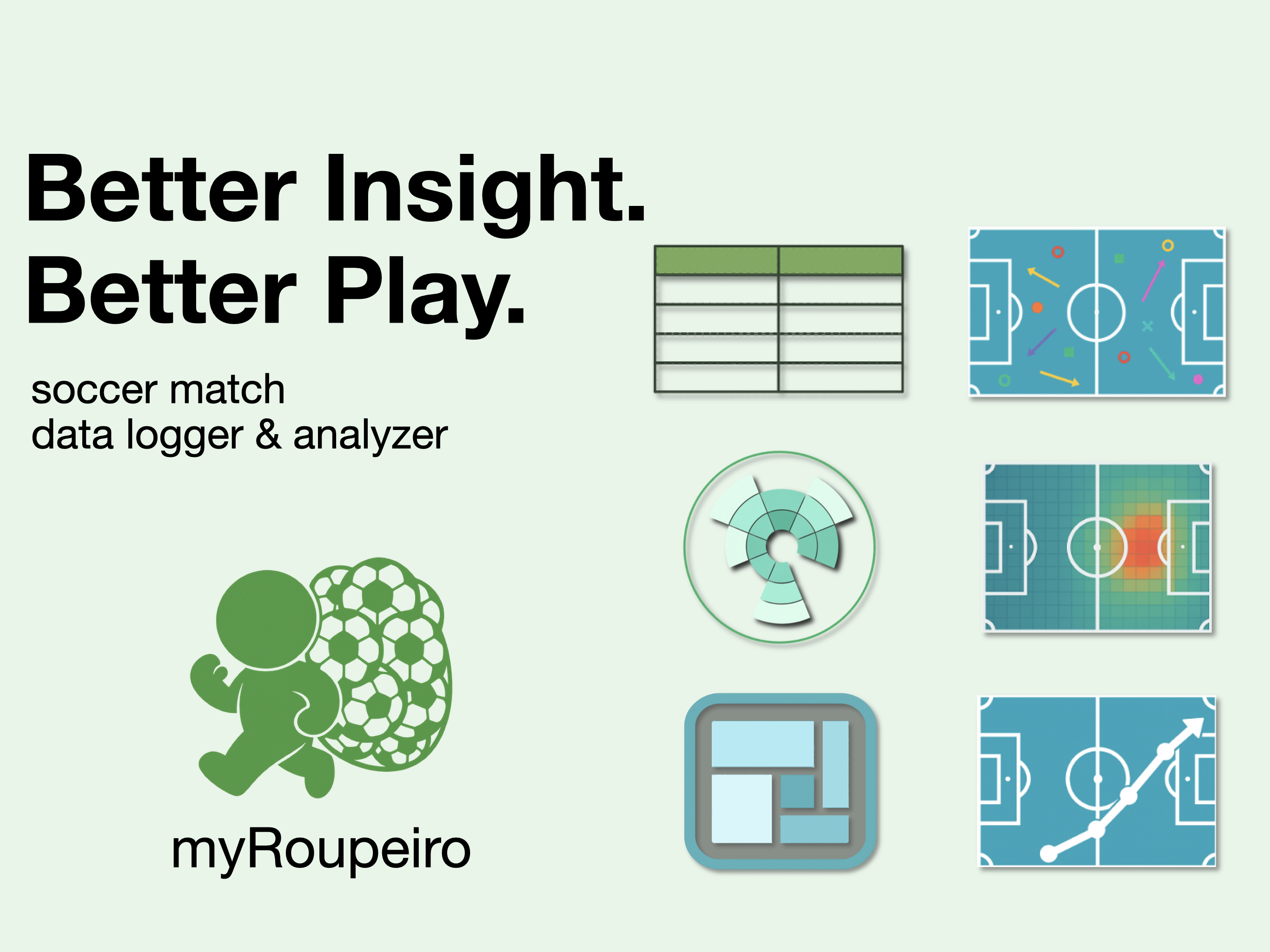
What is myRoupeiro?
“myRoupeiro” is a free app for supporting your video analysis of soccer matches.
- Recording who, when, where and how was involved in the event from the video of the match and visualize the match results
- Visualize various events such as shoots and passes in the game
- Visualized results can be viewed interactively
- The analysis results are saved in html files so you can view those on other devices or share them with your teammates
- The input data is saved as a ZIP file containing an XML file summarizing the match information and a CSV file recording the play-by-play events. You can load it directly into myRoupeiro for use, or analyze it independently using your preferred method, such as a spreadsheet or data visualization tool.
- You can record the data in detail, or you can roughly record only what you care about
- Also supports a half-size court, can be used for analysis of youth soccer
- Completely free app
This program was originally created by the operator of this site (me) to support video analysis of our team’s matches. myRoupeiro is an application version that anyone can use.
Until now, it was available only for Android, but with this update, I’ve also released an iOS version.
In version 3:
- Now available on iOS
- Completely redesigned UI, with improved comfort and stability during operation (based on user perception)
- You can now play YouTube videos directly within the app
- Started providing sample data, accessible via a download page reachable from within the app

Roupeiro (Portuguese) is an important behind-the-scenes support for a soccer team, meaning a soccer team’s equipment clerk.
After that, named the app as myRoupeiro, hoping that it would be a useful tool to support your team.
I hope you can use the data analyzed by myRoupeiro for your daily practice and the next game etc.
It’s like this
Visualize the events during the match
- Shots
- Goals
- Passes
- Freekicks etc.
Take a look at the team data
- Stats table
- Team event data
- Pass matrix
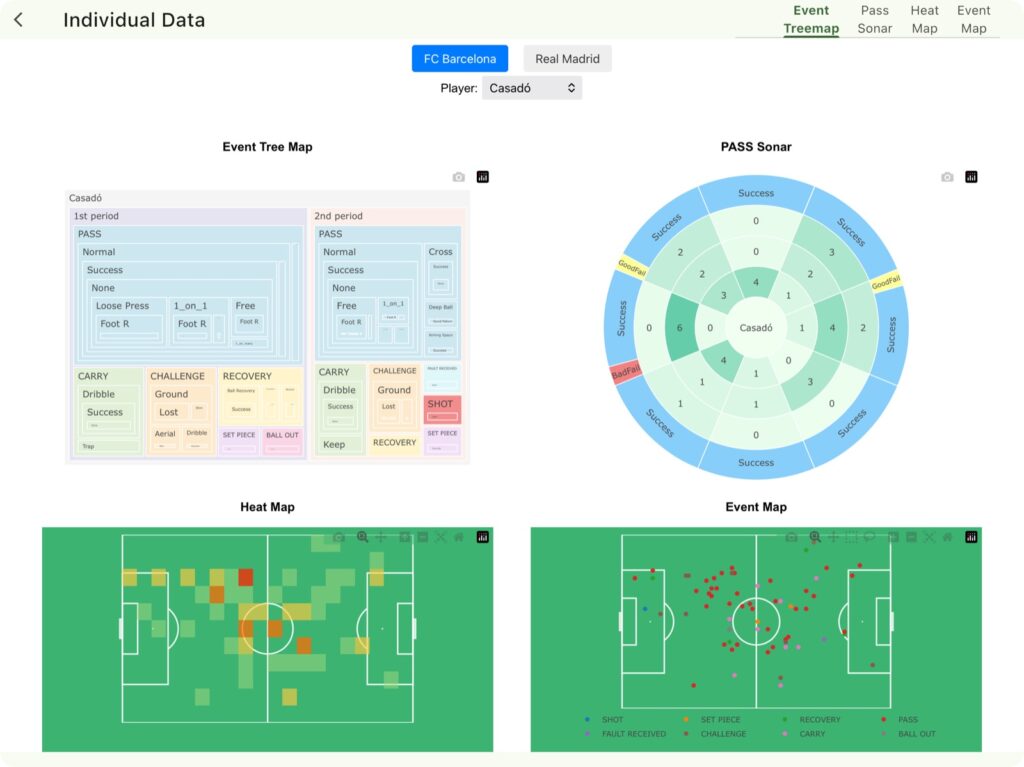
analyze individual data
- Individual event data
- Pass direction, distance, ratio of success / failure
- Heat map
- Event map
Follow the events during the match in chronological order
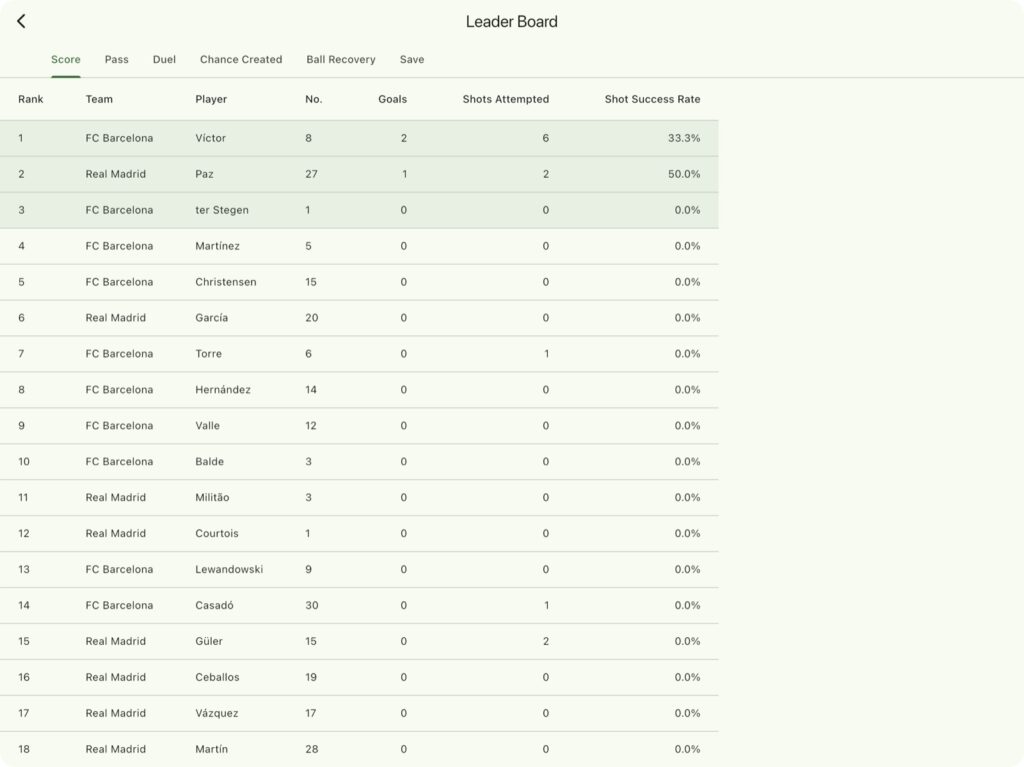
Leader Board
- View player statistics in a ranked list
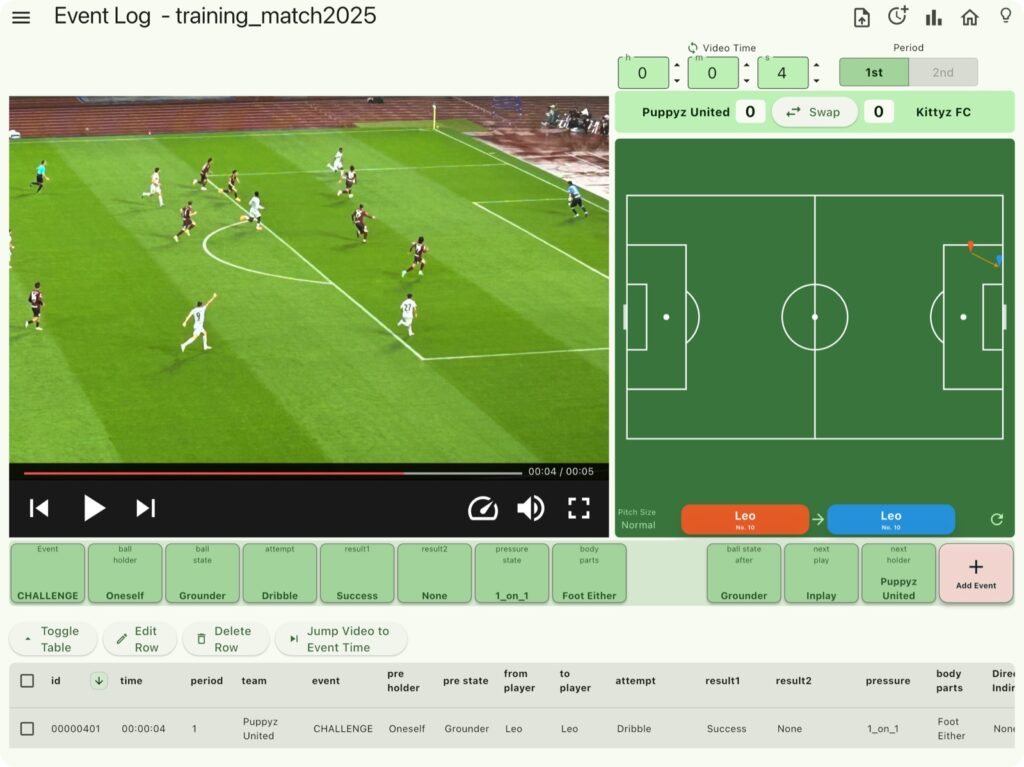
Data entry
record various events/results during the game with taps
You can play video files and YouTube videos directly within the app.
Notes
- myRoupeiro is an application for recording and analyzing by paying attention to the player who played near the ball within the range that could be shot with a video camera.
Therefore, it is not compatible with analysis such as the movement of the ball itself, the off-the-ball movement of players, and tracking data throughout the game. - a device with a large screen size, such as a tablet is recommended
How to use
<Data recording>
Record who, when, where and how was involved in the ball (we will call it an “event” here).
Launch and exit the app
| Launch | To launch the app, tap the “myRoupeiro” icon from the home screen or the app list. |
| Exit | <For Android> Open the recent apps view (swipe up from the bottom or tap the task button, depending on your device). Select the running “myRoupeiro” and swipe it away to close the app.. <For iOS> Swipe up from the bottom of the screen to open the App Switcher (on devices with a Home button, press the Home button twice). Select the running “myRoupeiro” and swipe it up to close the app. |
Note: While myRoupeiro does not have a full auto-save feature, we have implemented a semi-auto-save function that saves data every time event data is added. By using this, you can save your data frequently.
Screen description
・Home screen
When you start the app, the home screen will be displayed.
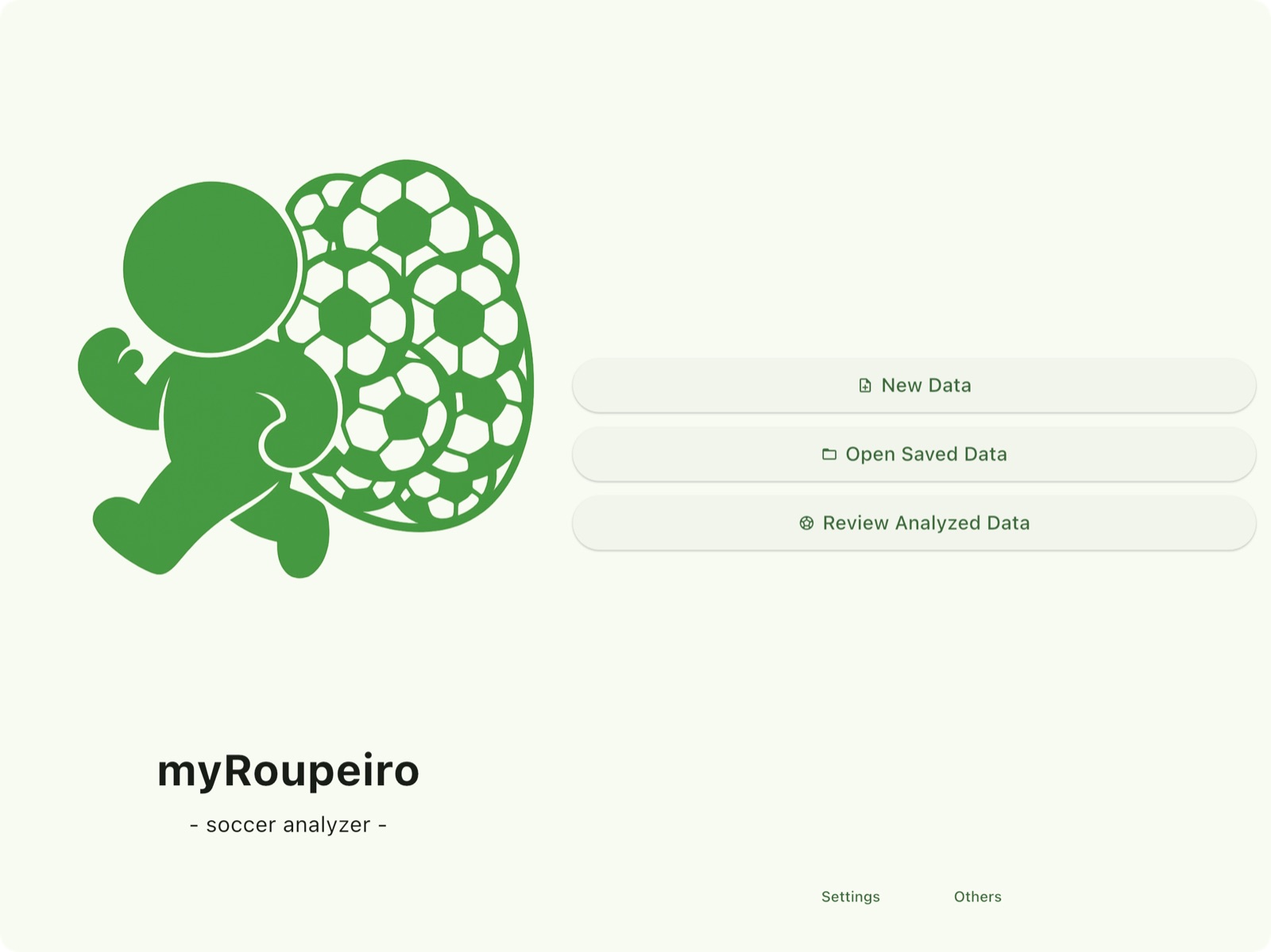
| note_addNewData | Create new data. Go to the Match Information screen. |
| folderOpen Saved Data | Load an existing data file (〜_Data.zip or a combination of .csv and .xml) to continue recording your match data. |
| sports_soccerReview Analyzed Data | Load the previously analyzed data to display the results. |
Tap the “Settings” button at the bottom of the Home screen to display the following options.
| languageLanguage | Switch between Japanese and English. |
| palette Color Theme | You can change the base color of the app according to your preference. |
| privacy_tip About Ad Consent Settings | This section explains the app’s ad consent settings. |
Press the “Others” button at the bottom of the Home screen to display the following options.
| menu_bookManual | Go to the manual page (external page = this page) |
| privacy_tipPrivacy | Go to the privacy policy page (external page = another page of this blog) |
| descriptionLisense | show the license |
| downloadGet Sample Data | Go to the sample data download page (external page = a dedicated page on this blog). |
・Match information screen
Enter match information.
Also, load the match video file when you use the video player.

| ① | Match Title | Enter the match name. The entered match name will be added to the file name of the data file and analysis file. *If no input is provided, “untitled_match” will be added to the file name. |
| ② | Team Name | Enter your team name and the opponent team name. *If no input is provided, “team1” or “team2” will be displayed. |
| ③ | Kickoff Date and Time | Select the kickoff date and time from the respective icons. *The app can be used even if no input is provided. |
| ④ | Pitch Size | Select the pitch size from either normal size (68m x 105m) or half size (50m x 68m). *If no selection is made, it will be considered normal size. |
| ⑤ | Video Player | If you want to use the video player, turn the button ON and select a video source. |
| ⑥ | Import Local Video/ YouTube Video | Select a video file or Specify a YouTube video (by video ID or full URL). |
・Event Logger screen
We can enter event data here.
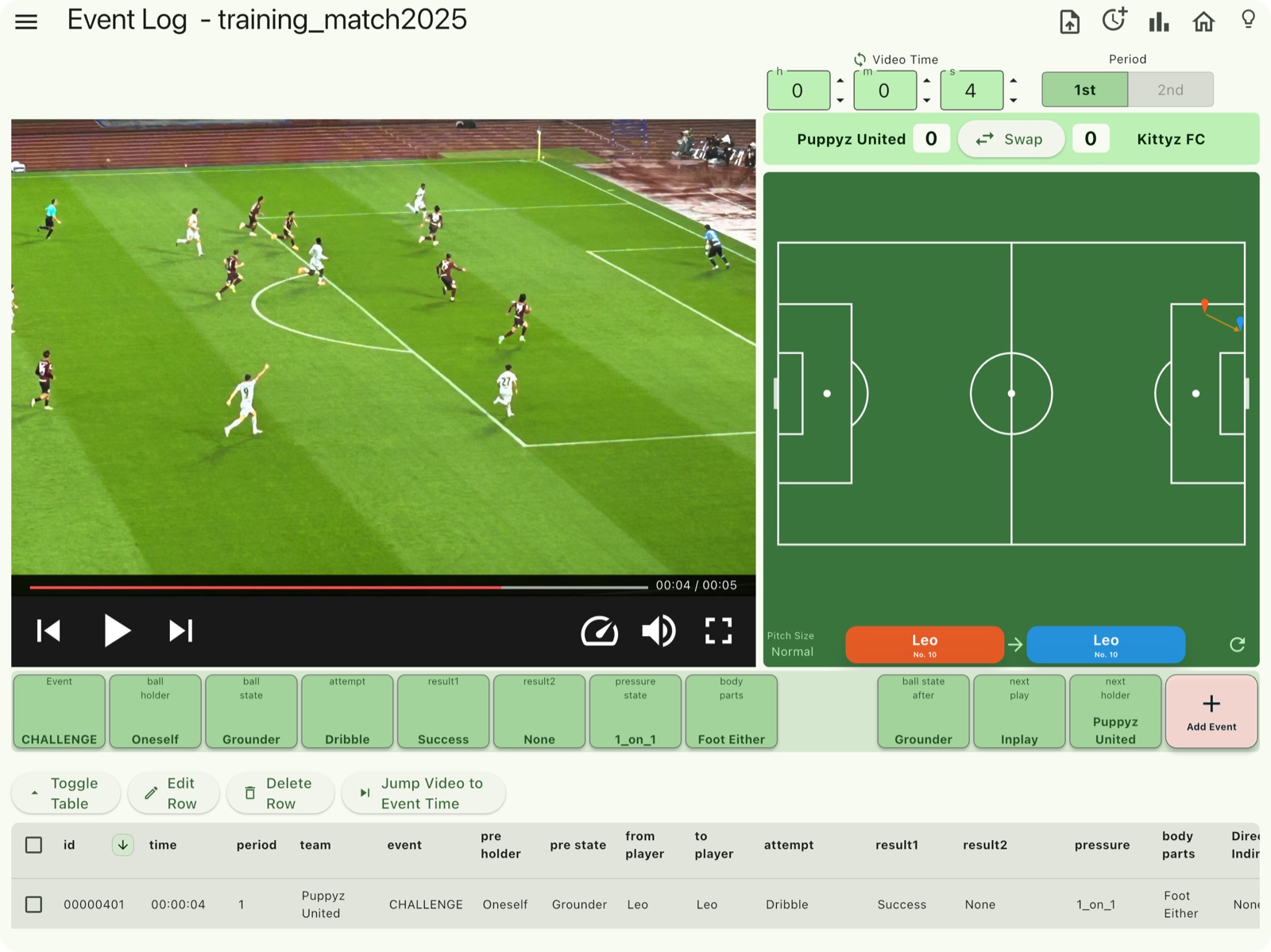
Menu bar

| ① | menu (Menu) | Open the menu for entering team information, etc. |
| ② | upload_file(Export Data) | You can export the data and save it outside the app. |
| ③ | more_time (Offset Time Setting) | You can configure the offset time and apply it to the “video time”. |
| ④ | bar_chart(Analysis) | Start Data Analysis |
| ⑤ | home(Home) | Return to the Home screen when launching myRoupeiro. |
| ⑥ | lightbulb(Tips) | View tips on how to use the app. |
・Menu
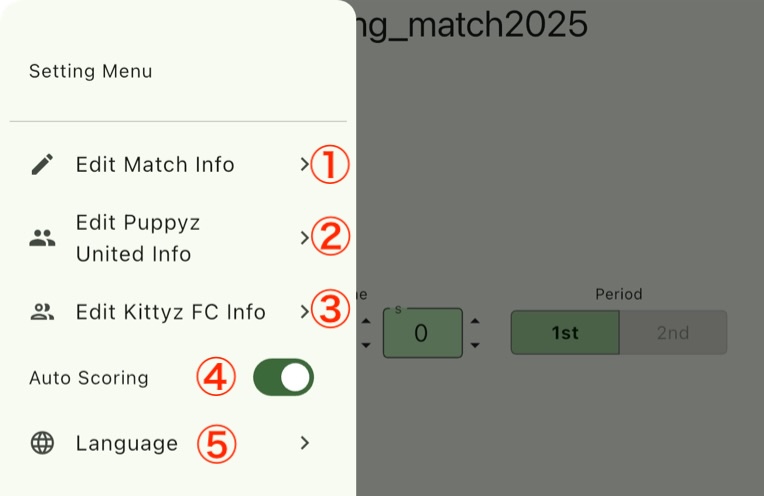
| ① | editEdit Match Info | Open the Match Information screen. |
| ② | group [Team1名] Info | Open the input screen for [Team1] member information. |
| ③ | groupOpen the input screen for [Team2] member information. | |
| ④ | Auto Scoring | When turned ON, the score will automatically update when a goal event is added. |
| ⑤ | languageLanguage | Switch between English and Japanese. |
・Input screen for team members’ information
This screen allows you to configure the jersey number, player name, position, and whether each item is displayed on the event logger screen.
You can set up to 24 members.
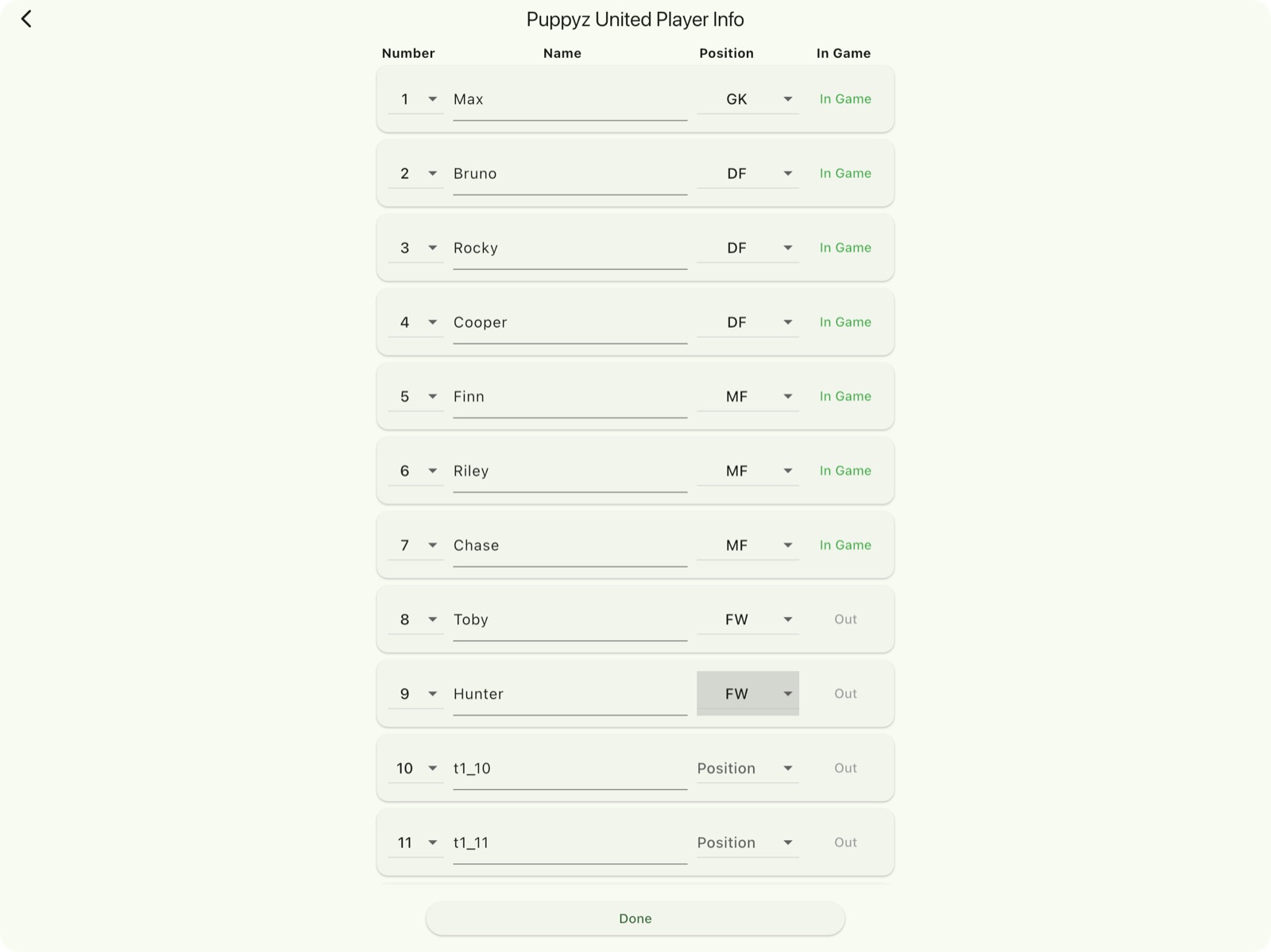
| Number | Select the jersey number (1–120). |
| Name | Enter the player’s name. |
| Position | Select the player’s position. |
| In Game | Choose whether to show or hide the player on the event input screen. |
Notes:
・If no input is provided, the default number and name will be used.
・The player’s position does not affect data entry or data analysis.
・Offset Time Setting
Adjust the displayed video time by adding a custom offset to the video player’s playback time.
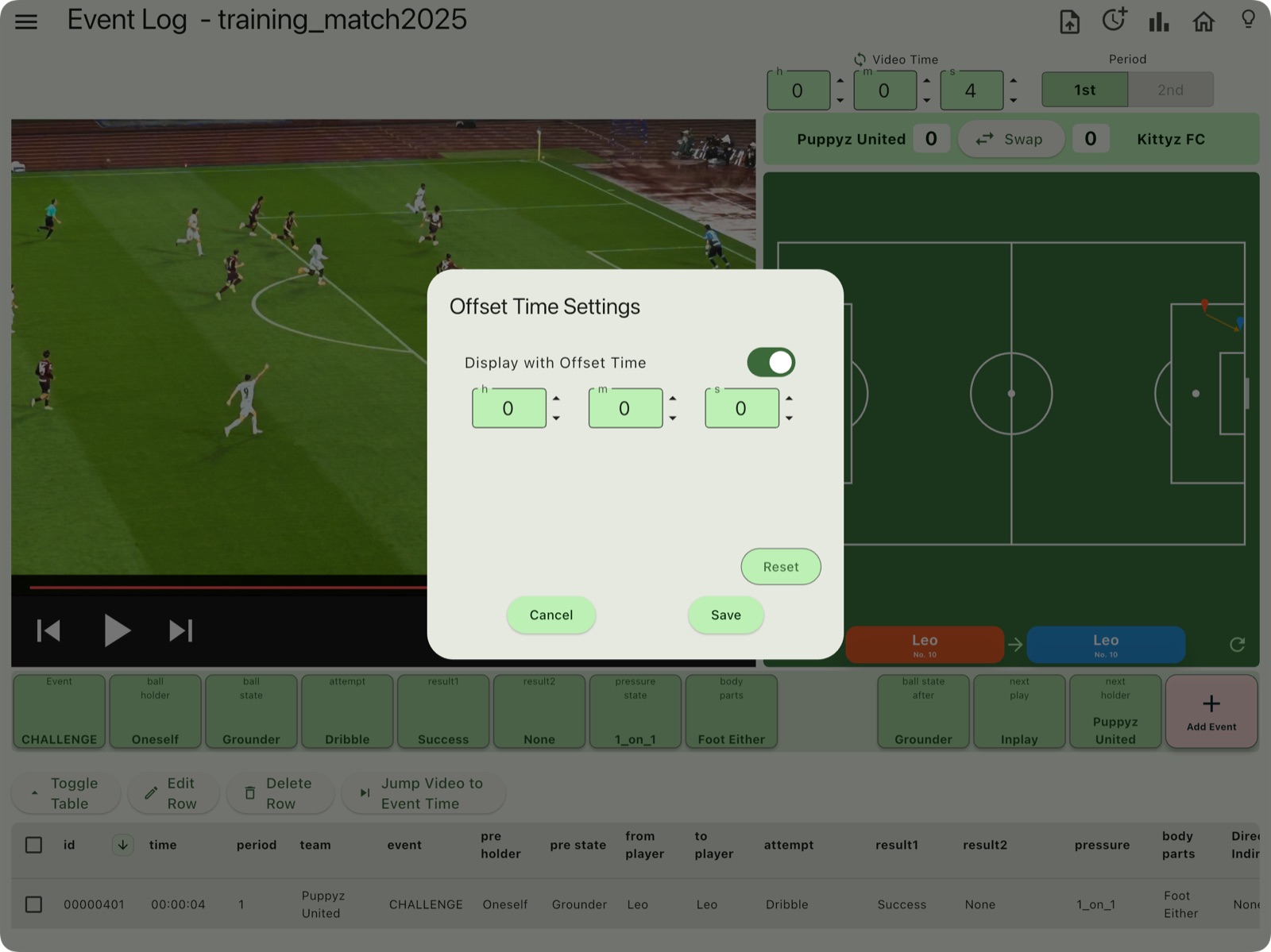
Note:
・For example, if the first and second half videos are separate, you can set an offset time to display the video time as a continuous match time that carries over from the first half.
Video time input ・ First half / second half selection
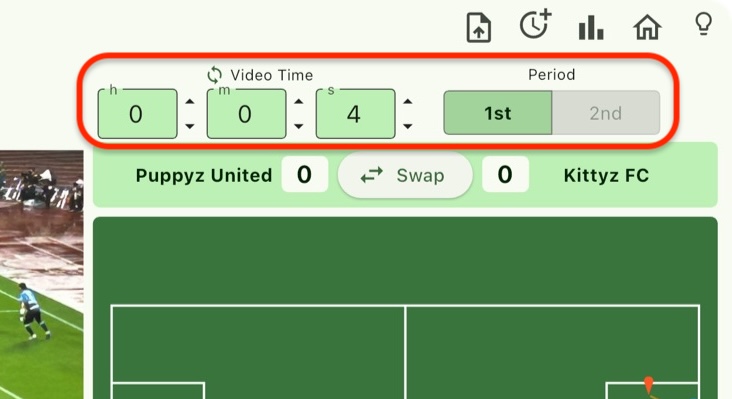
| Video Time | ・Enter the video timestamp (hours, minutes, seconds) when the event you want to record occurs. ・Press the up arrow to advance by 1. Press the down arrow to go back by 1. ・When using the video player, the timestamp will synchronize with the video’s playback time. ・You can turn video playback synchronization ON or OFF by tapping the「syncVideo Time」 |
| Period | Select 1st (first half) or 2nd (second half) (if not selected, it will be considered the first half). |
Note: myRoupeiro is designed for recording while watching video footage, so it uses “video time” for input.
・When Using the Video Player
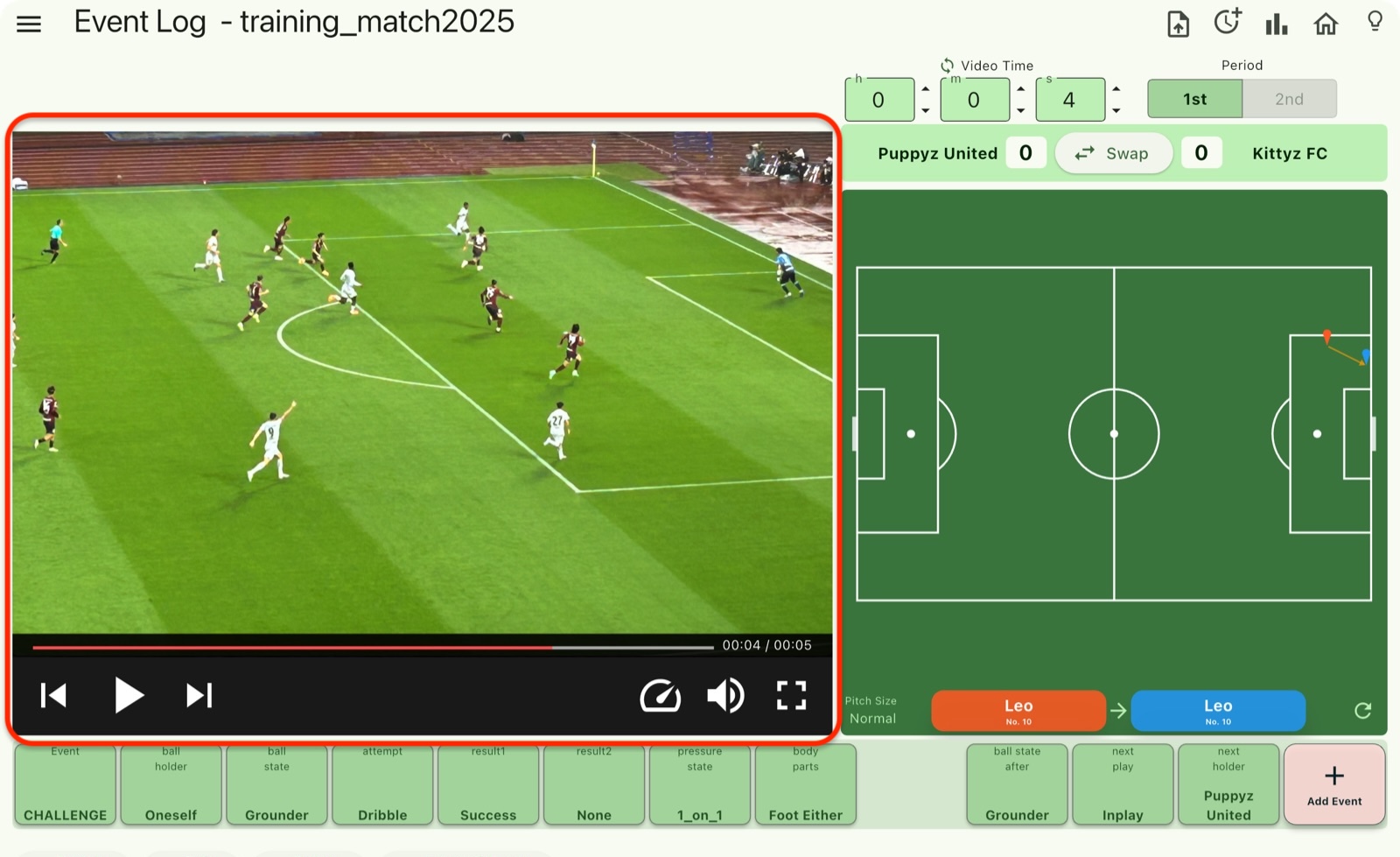
Note: When the video is paused, you can step forward or backward frame by frame. When it is playing, you can skip forward or backward by 10 seconds.
Player/Area
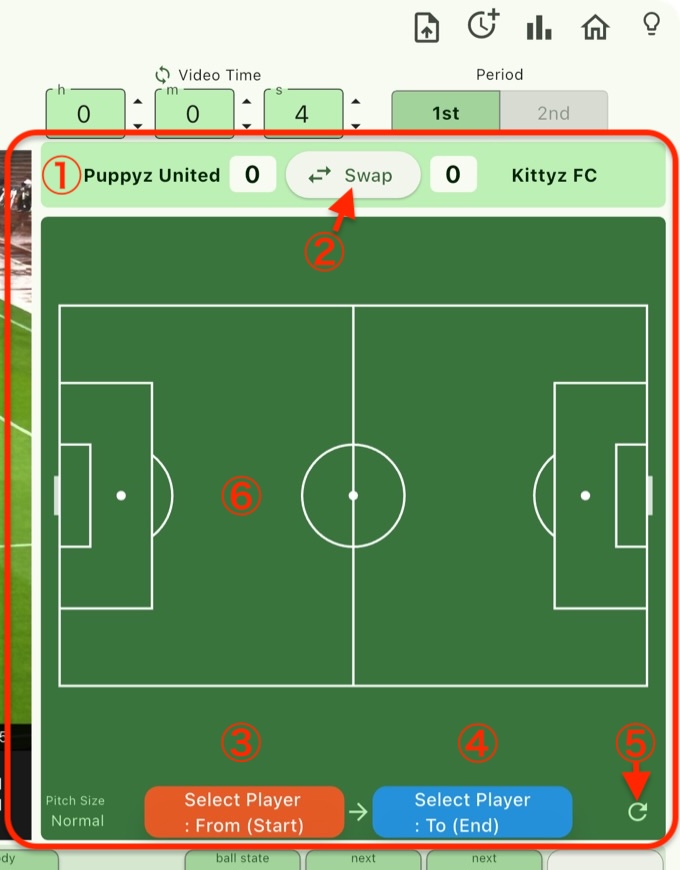
| ① | Team Name Score | Displays the team names and scores. *Settings can be configured on the Match Information screen. *If automatic score calculation is not enabled, enter the scores manually. |
| ② | swap_horiz Swap | Switch the ends (territories) of both teams. |
| ③ | Select Player: From(Start) | Select the player involved at the start of the event (e.g., the passer) from here. |
| ④ | Select Player: To(End) | Select the player involved at the end of the event (e.g., the receiver) from here. *“dest” is used to record the destination of the ball when there is no receiving player. |
| ⑤ | refresh(refresh) | Deselect players and erase points drawn at the locations involved in the events. |
| ⑥ | Play Area | An area that specifies where players were involved in the events on the pitch. |
Note:
・In the score display, the team on the left corresponds to the left side of the field. Use the Swap button to change sides if needed.
・Long-press the [From] or [To] button to display a menu that allows you to copy the [To] information to [From].
Player Selection
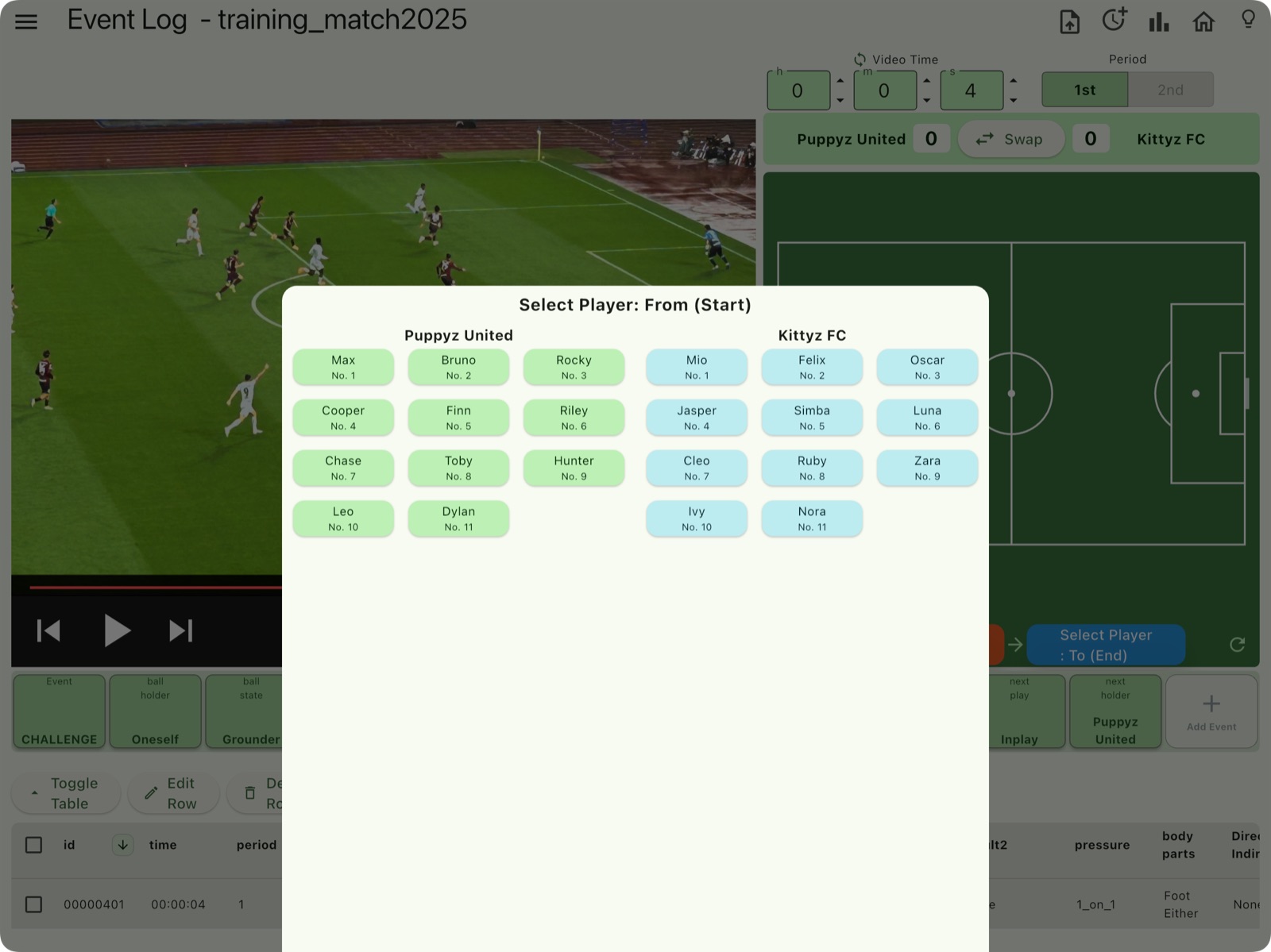
Event Panel

Event Panel Buttons
Select each item from here. Once all selections are made, the Add Event button becomes available.
| Event | Event Types |
| ball holder | ball holder before the event |
| ball state | Ball height condition before the event |
| attempt | Subcategory of event types (what was attempt to) |
| result1 | Success and failure (good / bad failure) |
| result2 | Select the outcome (choose one if applicable). |
| pressure state | Pressure state on the event |
| body parts | Body parts involved in |
| Direct/indirect | Direct play or not |
| ball state after | Ball height after the event |
| next play | Next play after the event |
| next holder | Next ball holder after the event |
| Add Event (In edit mode, tap Finish Edit.) | Add the event to the data table. |
Event Table Buttons
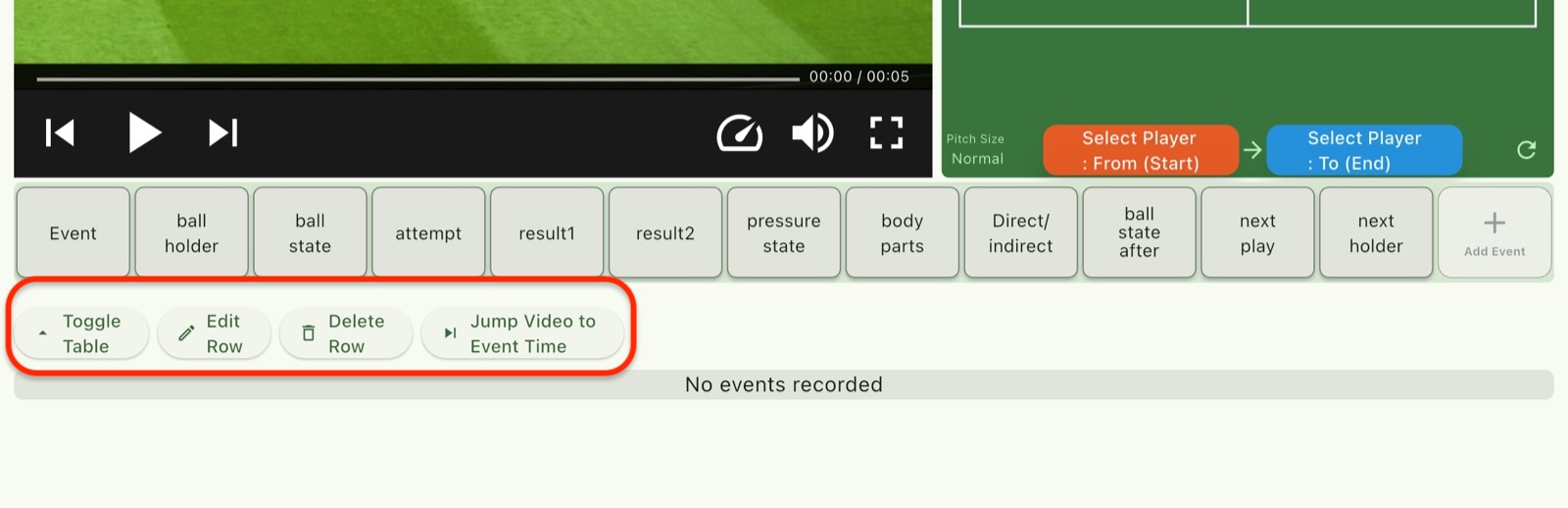
| arrow_drop_up Toggle Table | Expand or collapse the data table. |
| edit Edit Row | Edit the data row that has its checkbox selected. |
| delete Delete Row | Delete the data row that has its checkbox selected. |
| skip_nextJump Video to Event Time | Jump to the event’s timestamp for the data row with its checkbox selected (video player only). |
Event Table
This area displays the added events in a table format.
Select a data row using the checkbox before performing actions such as editing.

Note;
・Long-tap a data row in the event table to view its details in a popup.
・Pressarrow_downward
orarrow_upwardto toggle the sorting of the time values between ascending and descending order.
How to record events
After entering the match and player information, select and record events one by one.
| 1 | Enter the title, team names, kickoff time, pitch size, and other details on the Match Information screen. If you plan to use the video player, select the match video file/source (importing may take some time if the file size is large). |
| 2 | Enter player information in the team members’ information input screen. |
| 3 | While watching the match video, enter the time the event occurred into “Video Time.” *When using the video player, the time shown on the player is reflected automatically as the “Video Time.” |
| 4 | Select 1st period / 2nd period, and use the Swap button to switch team sides as needed. |
| 5 | Select the player involved in the event, then tap the location where the action occurred. If the action has a ball receiver (e.g., a pass), select the receiving player and tap the location where the ball was received. If there is no receiver (e.g., an unsuccessful pass), select dest instead of a player, and tap the location where the ball ended up. For actions such as dribbling, select the ball carrier and then tap the destination where the ball was carried. *The ball-originating player is always selected first, followed by the receiver (if applicable). *The Refresh button clears both the selected players and the event locations. |
| 6 | Select the event type from the Event buttons. |
| 7 | Select the events that occurred between the ball holder and the next holder. *If none apply, you can leave them as they are. ?The Add Event button becomes active once the required conditions are met. |
| 8 | Press the Add Event button to add the event data to the data table. *Each time you press the Add Event button, the data is saved (semi-auto save). |
| 9 | Repeat steps 3 to 8. When the first or second half ends, select End Half from BALL OUT and add it to the data table. |
Note;
If the events occuered at the same time, for example, if an interception event of the opponent’s ball led to a pass event immidiatey, it is better to treat and record those separately for two events, “recovery / intercept” and “pass”, respectively.
correction of event data
| 1 | In the data table, check the box for the event data row you want to edit, then tap the Edit Event button. The Add Event button will change from “Add Event” to “Finish Edit.” |
| 2 | After finishing the event data edits, tap the button labeled Finish Edit to complete the editing. |
Note; If you long-tap a row of the data table, you can see the content of that row in a popup. To turn off the pop-up, tap anywhere on the screen.
Deletion of event data
| 1 | In the data table, tap the checkbox for the event data row you want to delete to select it. |
| 2 | Tap the Delete Row button to remove the selected row. |
Note: Deleted data rows cannot be undone, so please proceed with caution.
Saving Data Outside the App (Export)
Save (export) the entered match information and event data outside of myRoupeiro.
| 1 | Tap the Export button (②) on the menu bar. |
| 2 | Change the file name if necessary and save. *The default file name is “[Match Title]_Data”. |
| 3 | .zip file will be created. |
Note:
The “[Match Title]_Data.zip” file contains both .xml and .csv files:
-> .xml file: stores match and player data
-> .csv file: stores event data
If you delete the app, all data within myRoupeiro will be lost, so it is recommended to occasionally save data outside the app.
Import data
Load a data file created with myRoupeiro ([Match Title]_Data.zip, or the .xml and .csv files).
On the Home screen, tap Open Saved Data.
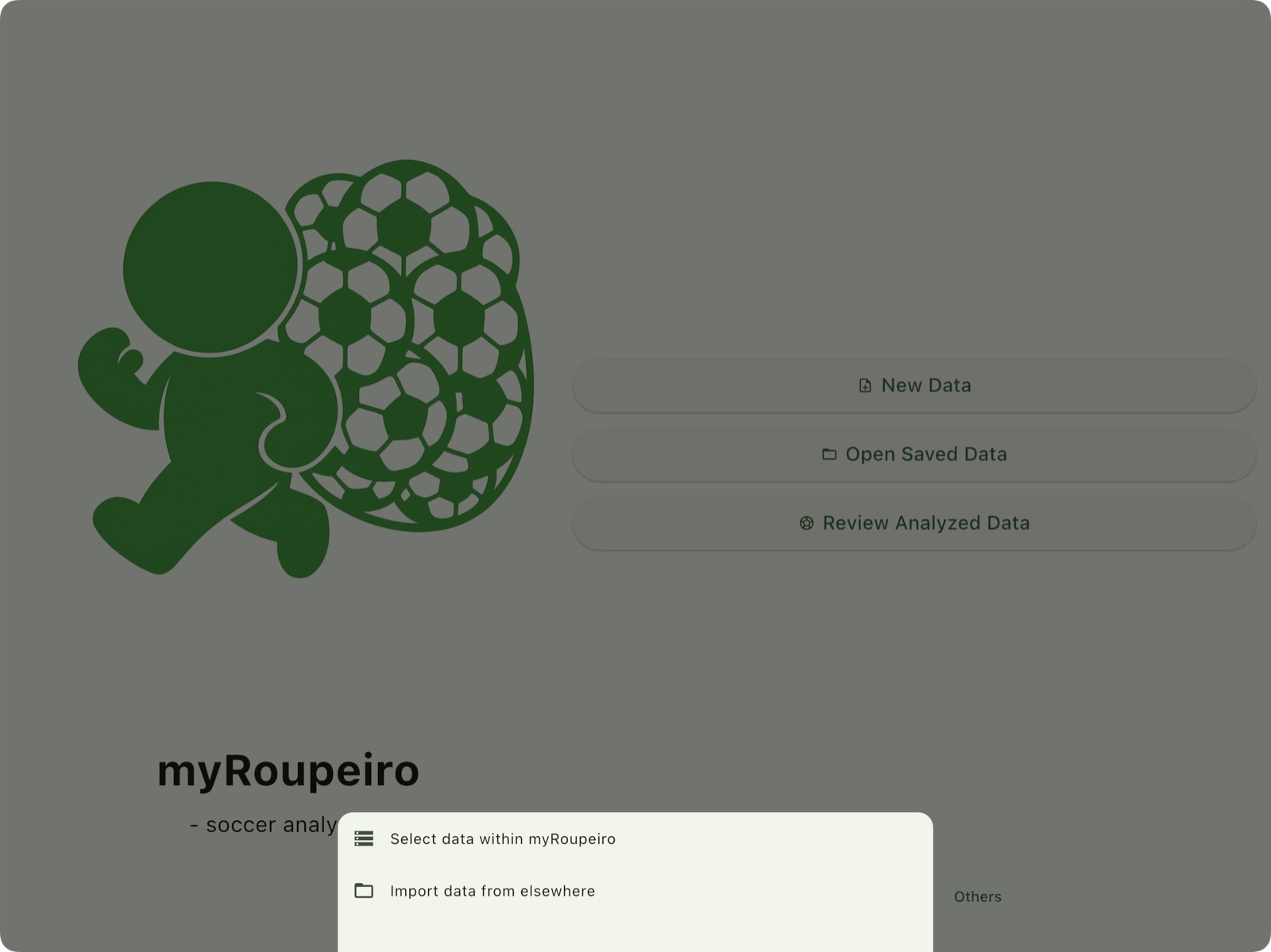
“Select data within myRoupeiro”:
- Select the folder of the match title you want to load to import the data.
“Import data from elsewhere”:
- You will be taken to the file selection dialog.
- Select the [Match Title]_Data.zip file, or select the
.xmland.csvfiles.
<Data analysis>
Run analysis
Tap the analysis button (④) in the menu bar at the top of the screen to start the analysis, and when the analysis is complete, you will move to the Match Results screen.
Match Results screen
From this screen, you can show the results of each analysis.
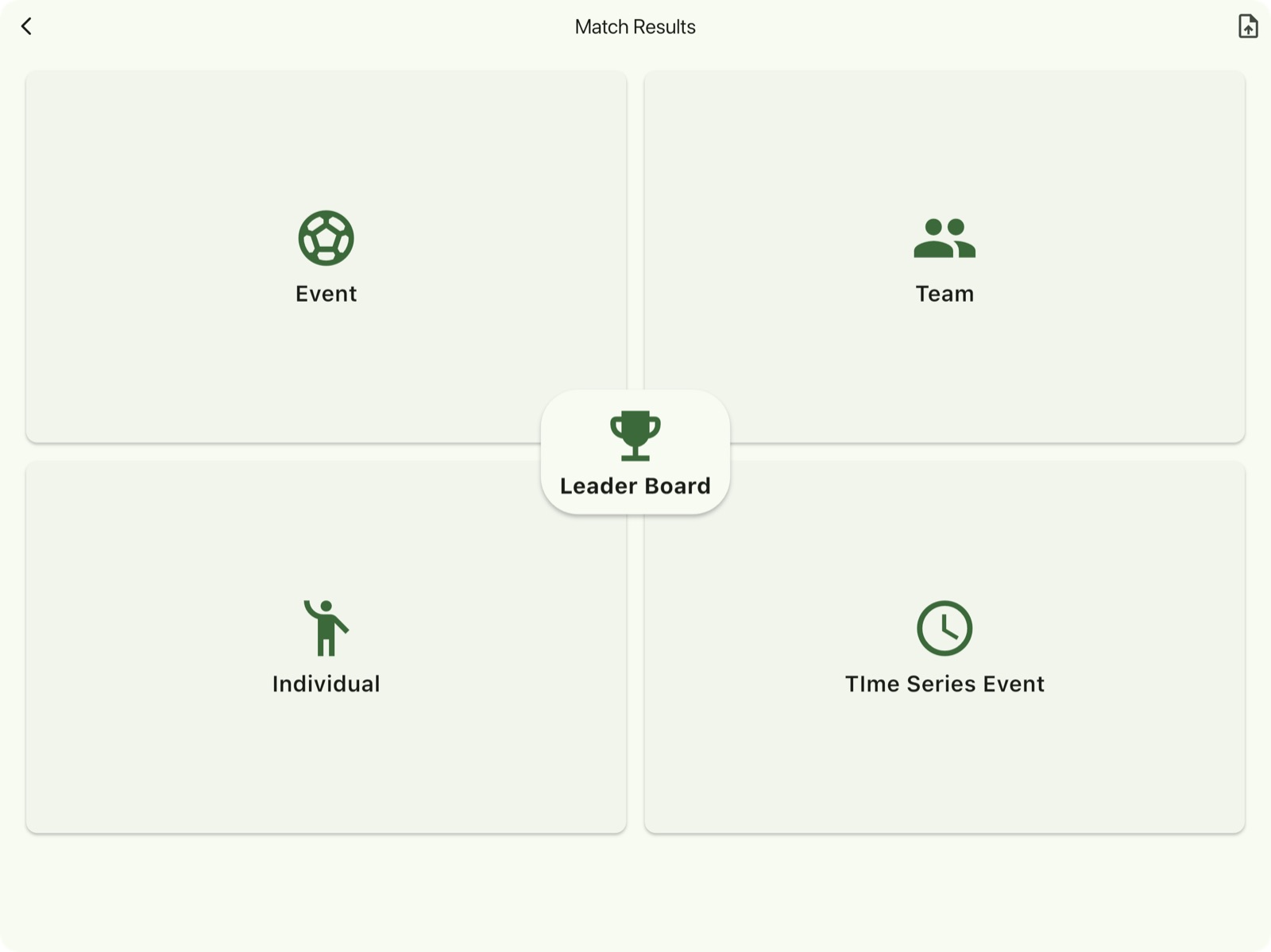
| Event | Event data analysis result |
| Team | Team data analysis results |
| Individual | Individual data analysis results |
| Time Series Event | Time series of the events with positions where the event occurred |
| Leader Board | Player statistics in a ranked list |
| upload_file(Export Data) | Export the analysis data file ([matchTitle]_Report_[timestamp].zip) to a location outside of myRoupeiro. |
Note:
The analysis result file [matchTitle]Report[timestamp].zip contains HTML files for each analysis result.
By using these files, you can view the analysis results in a web browser on another device or share them with your team members.
* A browser that allows JavaScript execution is required to open these files.
Loading Analyzed Data
If your data has already been analyzed, you can also view it from the “Review Analyzed Data” option on the Home screen.
After tapping “Review Analyzed Data”, select the folder of the match you want to load and import the data.
Once the data is successfully loaded, you will be taken to the match result screen.
💡 Next, let’s take a look at how your data will be visualized. The match event records you carefully entered will be presented in a clear and intuitive format.
<Event>
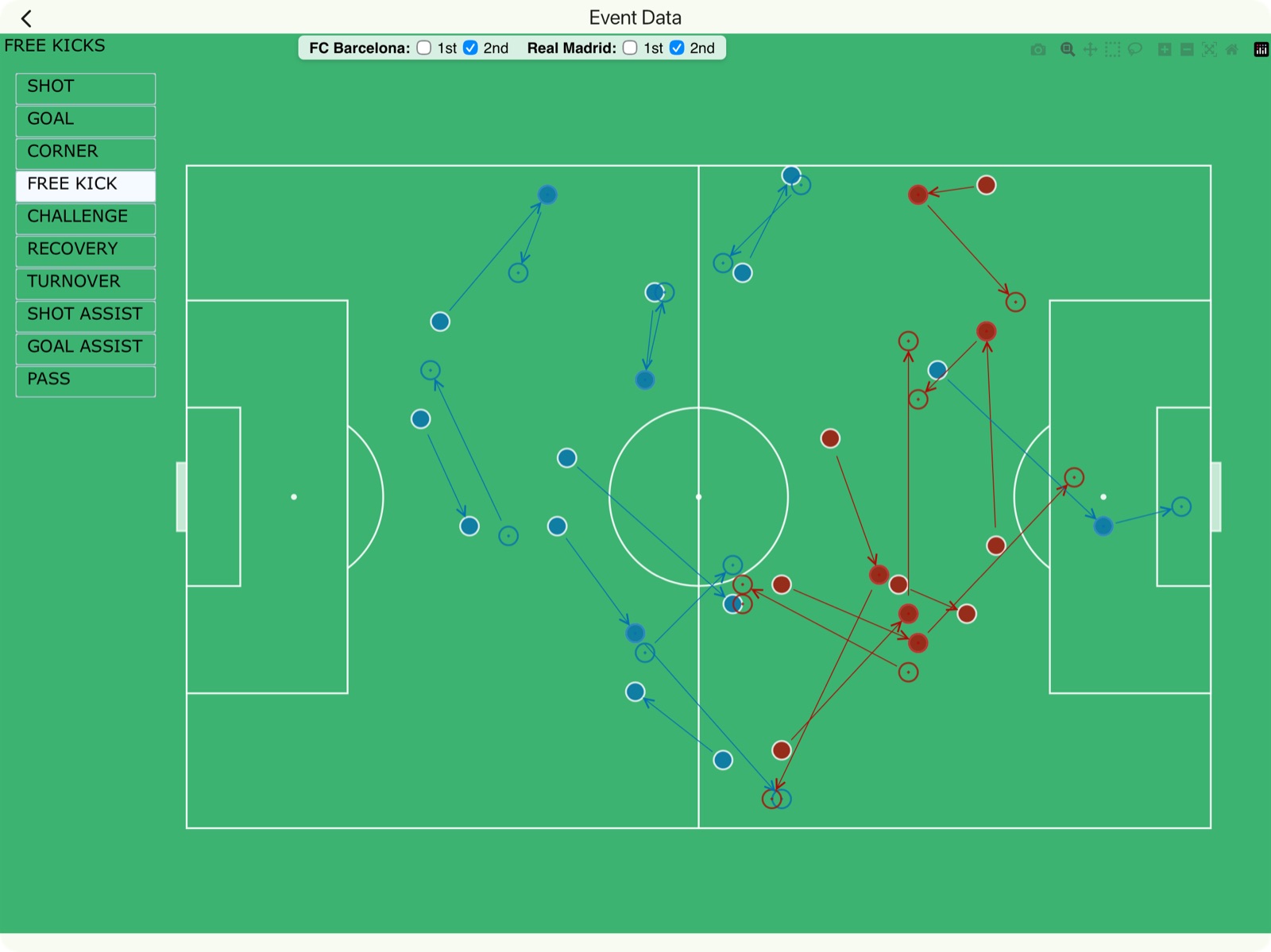
・For FREE KICK, the free kick events and their subsequent play events are displayed.
・The arrows indicate the directions of ball movement.
Explanation of Other Event Items
| Event Item | Description |
| SHOT | SHOT events |
| GOAL | Events directly linked to the goal |
| CORNER | Corner kicks and the next events |
| FREE KICK | Free kicks and next events |
| CHALLENGE | Press (including loose ones), duels, tackles and challenging dribbles |
| RECOVERY | Pass interceptions, ball recoveries, etc. |
| TURNOVER | Offensive and defensive transitions For example, a pass was intercepted and the offense and defense changed, and so on |
| SHOT ASSIST | Events that assisted shots |
| GOAL ASSIST | Events that assisted goals |
| PASS | Positions of successful passers and receivers. The arrow indicates the direction of movement of the ball |
| passers positions of successful passes | |
| receivers positions of successful passes |
Pop-up
Tap a marker, or hover over it (on a PC), to view details in a popup.

| row | ポップアップの表示 | 説明 |
| 1 | time; 01:37:29 | Video display time (it does not match the elapsed time of the match) |
| 2 | player; Fernández (no.7 FC Barcelona) | Player name (number team name) |
| 3 | pre-holder; Oneself | Ball holder before the event |
| 5 | pre-ball state; Grounder | Ball height before the event |
| 6 | attempt; SHOT | Event type |
| 7 | result1; Good Failure | Success or failure of the event (result1) |
| 8 | result2; Saved | Event result (result2) |
| 9 | pressure state; 1_on_1 | Pressure status received at the time of the event (Other examples; free) |
| 10 | body parts; foot L | Part played |
| 11 | Direct/Indirect; Indirect | Whether it is direct play |
| 12 | play direction; On Target | Whether the shot was on target |
| 13 | Distance; short | The flight distance of the ball after the event. “short” refers to a distance of less than 15 m. |
| 14 | after-ball state; Grounder | Ball height after the event (Grounder; ground ball) |
| 15 | next play; Corner Kick | The next play after the event (saved, leading to a corner kick) |
| 16 | next holder; FC Barcelona | Team in possession after the event |
In the case of a goal event, the next play is a kickoff; select it accordingly.
<Team Data>
Stats table
Match Statistics Table
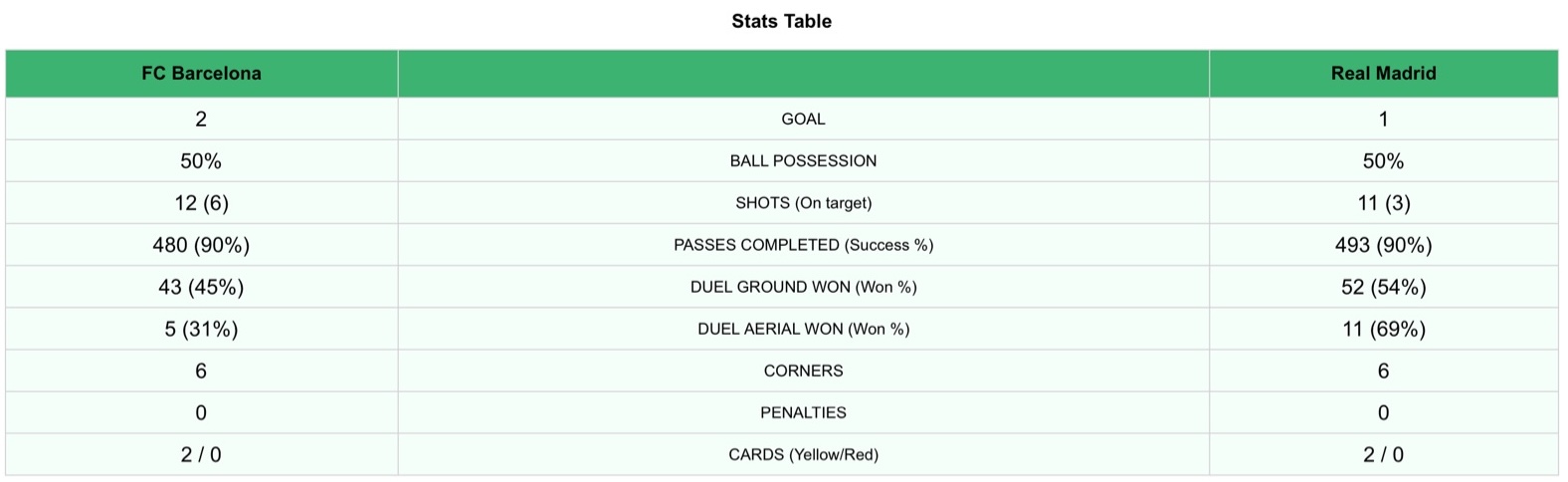
| Item | Description |
| GOAL | Goals |
| BALL POSSESSION | Ball retention rate (%) |
| SHOTS(On target) | Number of shots *Including attempt of shots not touching the ball (result2; close to touch) *Number of shots on target in parentheses |
| PASSES(Success) | Number of successful passes. Success rate (%) in parentheses |
| DUEL GROUND(Won) | Number of Ground Duels Won *The number in parentheses indicates the win rate (%). |
| DUEL AERIAL(Won) | Number of Aerial Duels Won *The number in parentheses indicates the win rate (%). |
| CORNERS | Number of corner kicks |
| PENALTIES | Number of penalty kicks |
| CARDS | Number of cards issued |
Tree Map
Tree map summarizes all the events.
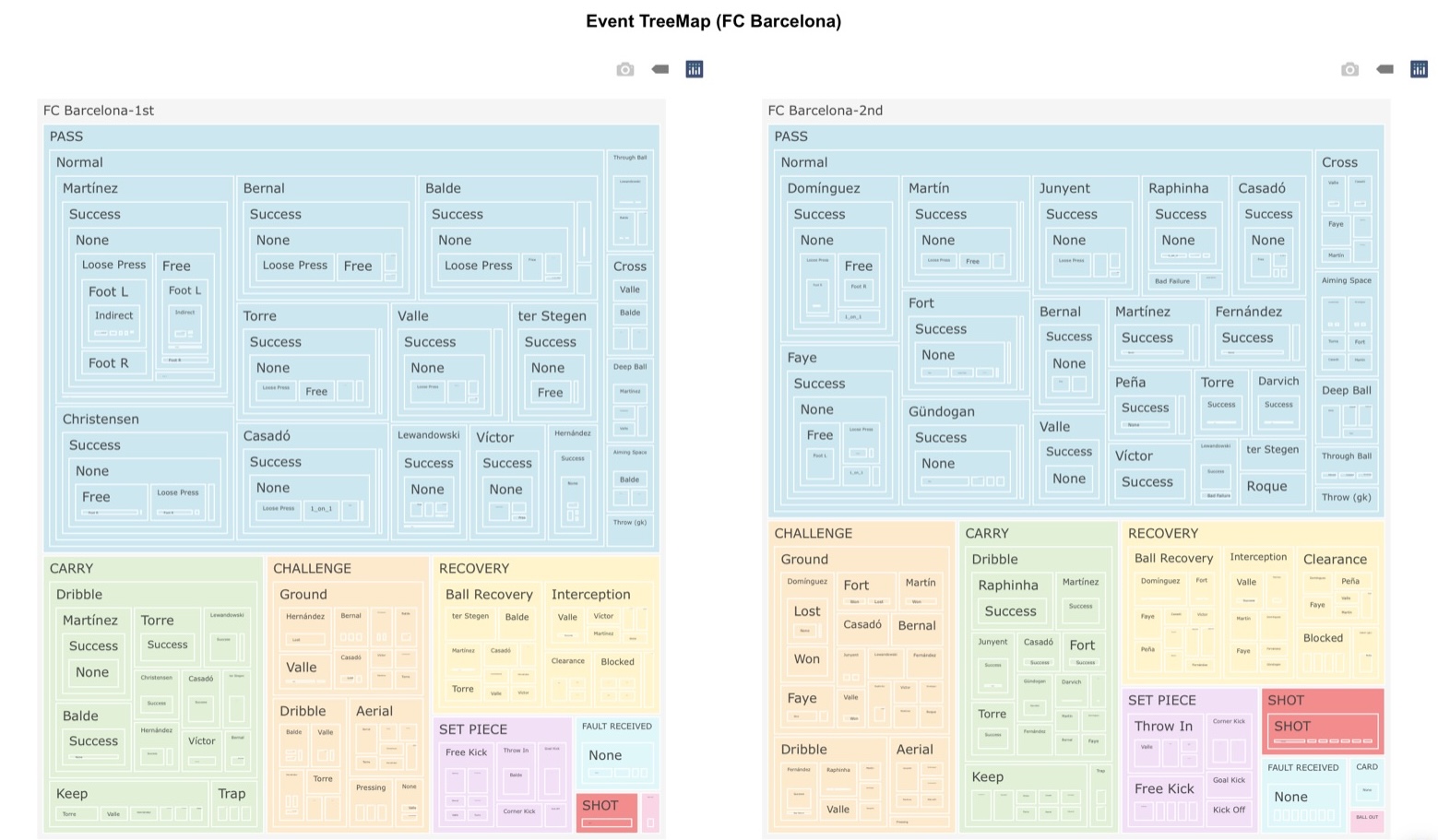
- Displayed separately for the first and second halves.
- There, the results sorted by event type are nested.
- In addition, individual results are nested within each event.
- The larger the area, the higher the number of events counted.
- Tap the nested section to view the details.
- Other breakdowns
- Success / Good Failure / Bad Failure
- Pressure condition (free / loose press / 1 on 1 / 1 on many / many on 1)
- Body parts
- Direct play/Indirect play
- Ball direction
- Ball distance (short / middle / long) etc.
*You can also see the number of times the event was counted.
*Please ignore “None”
- Other breakdowns
Pass Matrix
A matrix table showing the passers and receivers of successful passes
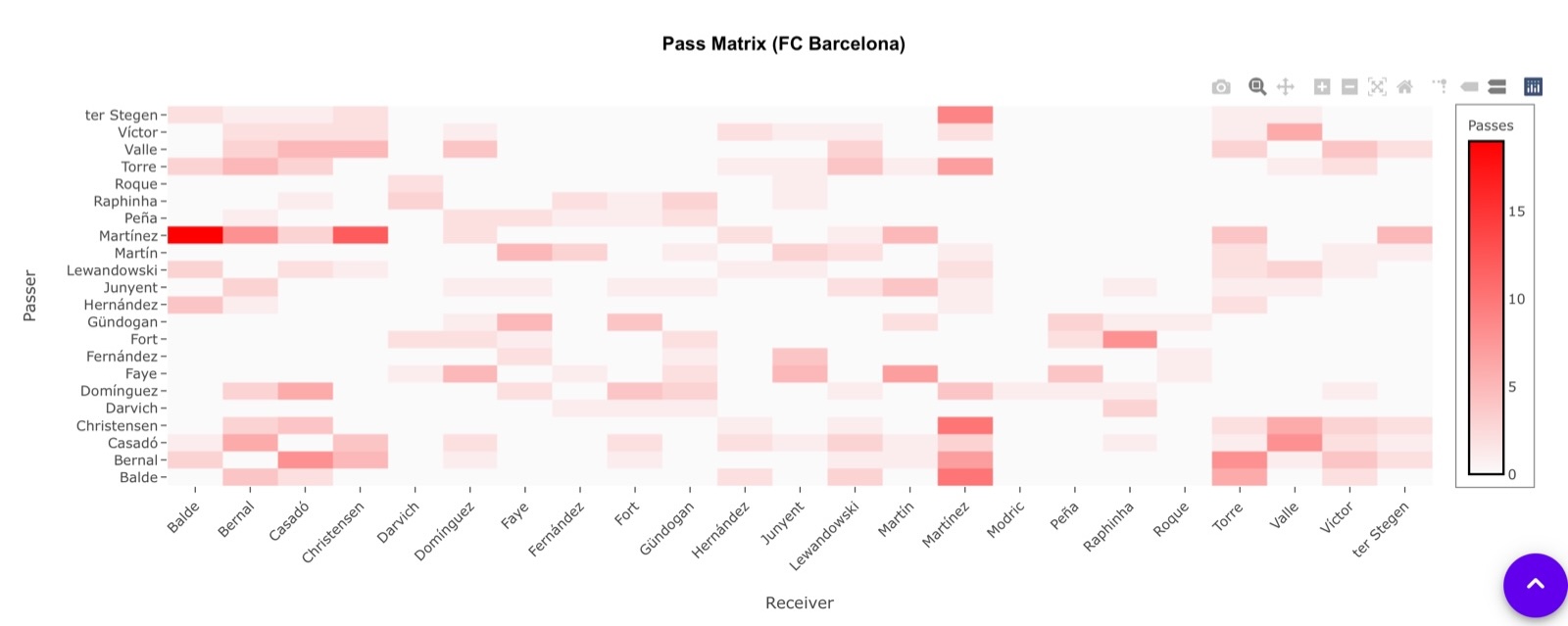
*Vertical axis; passers / Horizontal axis; receivers
*The intensity of red is proportional to the number of passes
<Individual>
Individual data analysis results
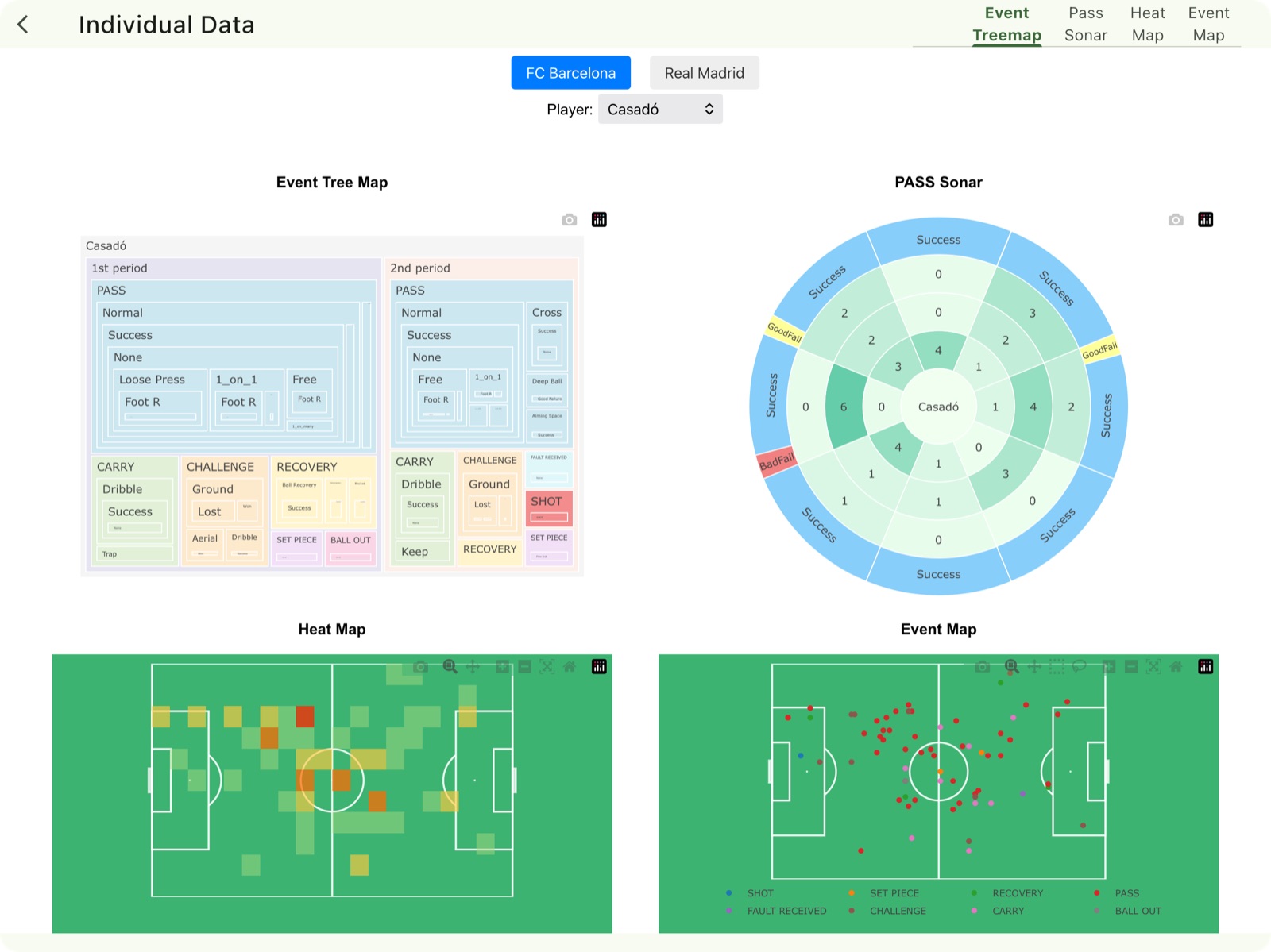
| Event tree map | Events involving individuals and their breakdown *You can see the details by tapping |
| Pass direction/distance | Breakdown of all passes ・direction ・distance ・number of passes ・success / failure ratio in that direction *Regardless of the direction of the player’s body, the opponent’s goal line side is always on the top and the own goal line side is on the bottom *From the inside of the circle ・ Short pass (approximately up to about 15m) ・ Middle pass (approximately from 15m to 30m) ・ Long pass (approximately 30m over) *Color intensities are proportional to the number of passes |
| Heat map | Player’s positon and how many times involved in events *The first half data and the second half data are shown so that the attack directions are the same. |
| Event map | Position of event and type *The first half data and the second half data are shown so that the attack directions are the same. *You can turn points on / off by clicking the legend below. |
<Time Series Event>
You can check the events in chronological order along with the position of the event with animation.
The colors of the markers indicate the ball holder just before the event (based on the ball holder selected on the Before event).
●; [team1]’s ball
●;loose ball
●;[team2]’s ball
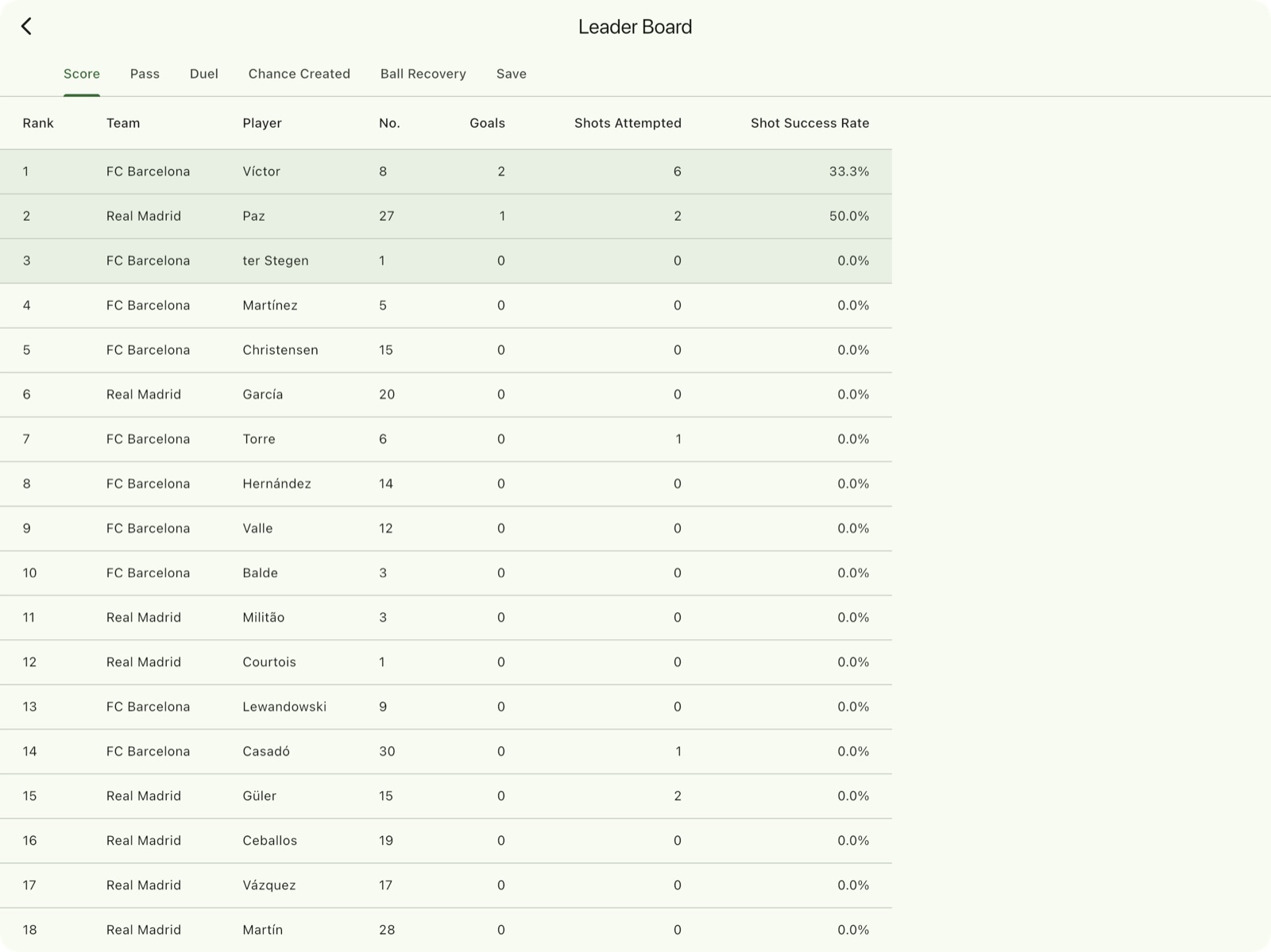
<Learder Board> (This feature is available from version 3.1.0 onward.)
You can view each player’s statistics in a ranked format, allowing comparison across metrics such as goals, passes, and duels.
Tapping a header switches the list to a ranking based on that metric. Tapping again toggles the order between ascending and descending.
<Event definition / description>
*You can reinterpret and redefine these to make it easier to use according to your situation.
イベントの分類
| PASS | Events related to passing. |
| SHOT | Events related to shooting. |
| RECOVERY | Events related to ball recoveries or clearances. |
| FAULT RECEIVED | When a foul is received. |
| SET PIECE | Set plays such as free kicks, throw-ins, and kick-offs. |
| BALL OUT | Events where the ball goes out of play, or the end of a half. |
| CARD | Cards issued. |
| CHALLENGE | Challenging plays such as pressing, tackling, dribbling past opponents, and duels. |
| CARRY | Ball-carrying actions such as dribbling, trapping, and maintaining possession. |
PASS
| Subcategory | Description |
| Normal | nomal passes |
| Cross | cross |
| Through Ball | through ball |
| Deep Ball | Highball aimed at the back of the defense |
| Aiming Space | Ball into space |
| Kick(GK) | Passes by GK kick after catching the ball |
| Throw(GK) | Passes by GK throw after catching the ball |
| Voluntary | Returned the ball Intentionally to the opposite team, etc. |
| Result Details | Description |
| Offside | Be offside |
| Clearance | be cleared |
| Assist | Assist |
| Loose ball | Led to a loose ball |
| SAVED | Saved or caught the ball by the keeper |
| Mistake(ally) | The pass was good quality, but the receiver mishandled it |
| Mistake(opp) | The quality of the pass was low, but it worked for some reason due to the mistake of the opponent |
| Pass To Opps | Passed to the opponent team |
| Miskick | Miskick / pass miss |
| Out | Led to out of play |
| Interception | Be intercepted |
| Deflection | The ball deflected off a player |
| Blocked | Blocked |
| Referee Hit | Hit the referee |
SHOT
| Result Details | Description |
| Goal | Goal |
| Blocked | Blocked |
| Saved | Saved or caught by a goalkeeper |
| Woodwork | Hit the goal frame |
| Out | Out of the goal frame and goes to out of play |
| Close To Touch | Not able to touch the ball to shot (*counted as a shot here) |
| Referee Hit | Hit the referee |
| None | No corresponding item |
RECOVERY
| Subcategory | Description |
| Clearance | Cleared |
| Interception | Intercepted |
| Ball Recovery | Loose ball / second ball recovery or intentional play |
| Blocked | Blocked shot / cross |
| Course block | Protect the ball by blocking the opponent’s direction |
| Catch(gk) | GK caught the ball (when own team was defensive) |
| Saved | prevents a goal |
| Referee Hit | Hit the referee |
| Result Details | Description |
| Own Goal | Play leading to an own goal |
| Deflection | Deflected off a player |
| None | No corresponding item |
FAULT RECEIVED
| Subcategory | Description |
| None | No corresponding item |
| Get Fk | Got a free kick |
| Advantage | Advantage applied |
| Penalty | Got a penalty kick |
SET PIECE
| Subcategory | Description |
| Goal Kick | Goal kicks |
| Free Kick | Free kicks |
| Free Kick Shot | Free kicks with intention to shot |
| Corner Kick | Corner kicks |
| Throw In | Throw-in |
| Kick Off | kick offs |
| Penalty Kick | Penalty kicks |
| Retaken a set piece |
| Result Details | Description |
| None | No corresponding item |
| Blocked | Blocked |
| Saved | Saved or caught by a goalkeeper |
| Clearance | Be cleared |
| Woodwork | Hit the goal frame |
| Aiming Space | Ball into space |
| Goal | Goals |
| Out | Out of play as it is outside the frame |
| Own Goal | Scored with own goal |
| Assist | Assist goals |
| Loose Ball | Led to a loose ball |
| Defrection | The ball deflected off a player |
BALL OUT
| Subcategory | Description |
| Clearance | Cleared and made it out of play |
| Voluntary | made it out of play Intentionally to stop play |
| Forced | Stop play by referee |
| End Half | End of first half / second half period |
| Referee Hit | Hit the referee |
| Mistouch | Failed ball control and led to out of play |
| Hand Ball | Hand ball |
CARD
| Subcategory | Description |
| Yellow | Yellow card |
| Red | Red card |
CHALLENGE
| Subcategory | Description |
| Pressing | Pressing (can be any kind of presses) |
| Tackle | Tackles |
| Dribble | Dribble attempt to pass an opponent |
| Duel Ground | Ground duels |
| Duel Aerial | Aerial duels |
| Result Details | Description |
| None | No corresponding item |
| Fault | Fouls |
| Advantage | Applied advantage |
| Penalty | Give a penalty kick |
| The player lost the ball to an opponent. | |
| Dispossessed | The player lost the ball to an opponent. |
| Steal | The player gained possession by taking the ball from an opponent. |
*In versions prior to ver.3, the event was labeled ‘Theft’. From ver.3 onwards, it has been renamed to ‘Dispossessed’ to better reflect that the player lost the ball to an opponent.
Just for reference;
We record as “Success” for pressing with a noticeable good effect, “Bad failure” for pressing with a noticeable adverse effect, and “Good failure” for others.
CARRY
| Subcategory | Description |
| Dribble | Dribble(not challenging, just carrying) |
| Trap | Trap/controll the ball |
| Keep | Keep the ball |
| Result Details | Description |
| BALL OUT | Led to out of play |
| Clearance | Be cleared |
| The player lost the ball to an opponent. | |
| Dispossessed | The player lost the ball to an opponent. |
| Fault | Fouls |
| Loose Ball | Led to a loose ball |
| None | No corresponding item |
*In versions prior to ver.3, the event was labeled ‘Theft’. From ver.3 onwards, it has been renamed to ‘Dispossessed’ to better reflect that the player lost the ball to an opponent.
Others
| Category | Expression | Description |
| Ball height before the event | Grounder | Ground ball |
| Low | Ground to head | |
| High | Above head | |
| ball holder before the event | Oneself | The ball was already in possession of the player before this event. |
| [Team1] | Team1 player | |
| [Team2] | Team2 player | |
| Loose Ball | Loose ball | |
| Drop Ball | Restarted with a drop ball | |
| None | No corresponding item | |
| Event result | Success | Event successful |
| Bad Failure | Unsuccessful due to “no good” play or poor quality | |
| Good Failure | Intentional and relatively good quality but unsuccessful | |
| Pressure condition | Free | Free |
| Loose press | Loose pressure | |
| 1_on_1 | One-on-one or similar stuation | |
| 1_on_many | One-on-many or similar situation | |
| many_on_1 | Many-on-one or similar stuation | |
| Opp_free | Let your opponent play for free (when your team is on the defensive side) | |
| Body parts | Foot R | Right foot |
| Foot L | Left foot | |
| Foot Either | Both or unknown | |
| HEAD | Head | |
| Body | Body | |
| Both Hands | Both hands | |
| Hand R | Right hand | |
| Hand L | Left hand | |
| Direct play | DIRECT | Direct |
| INDIRECT | Indirect play | |
| Distance* | Short | 〜15m |
| Middle | 15〜30m | |
| Long | 30m〜 | |
| Ball height | Grounder | Ground ball |
| Low | Ground to head | |
| High | Above head | |
| 次の展開 | inplay | Inplay |
| Throw In | Throw-In | |
| Goal Kick | Goal Kick | |
| Corner Kick | Corner Kick | |
| Free Kick | Free Kick | |
| Drop Ball | Drop Ball | |
| Penalty | Penalty Kick | |
| Kick Off | Kick Off (match start or after a goal) | |
| Lost Score | Lost Score | |
| Next ball holder | [Team1] | [Team1] player |
| [Team2] | [Team2] player | |
| Loose Ball | Loose Ball | |
| Referee | Referee |
*The distance is automatically calculated.